

EMIS-X App Launch
Our platform enables third-party applications to integrate seamlessly with our EMIS-X system, offering a modern experience for end users. This Developer Guide provides a specification for how third-party applications can be launched from EMIS-X with single sign-on for authorised end users.
| Method | Description | Presentation Options | Context | SSO | Key Considerations |
|---|---|---|---|---|---|
| Navigation Menu Launch | Third-party app added to EMIS-X navigation menu for direct launch | - Embedded View (iFrame) - Pop-Out Window | Organisation and user Patient (if required) | Supported for seamless user authentication | Simple integration; accessible from main menu |
Integrating your application
Section titled “Integrating your application”Introduction
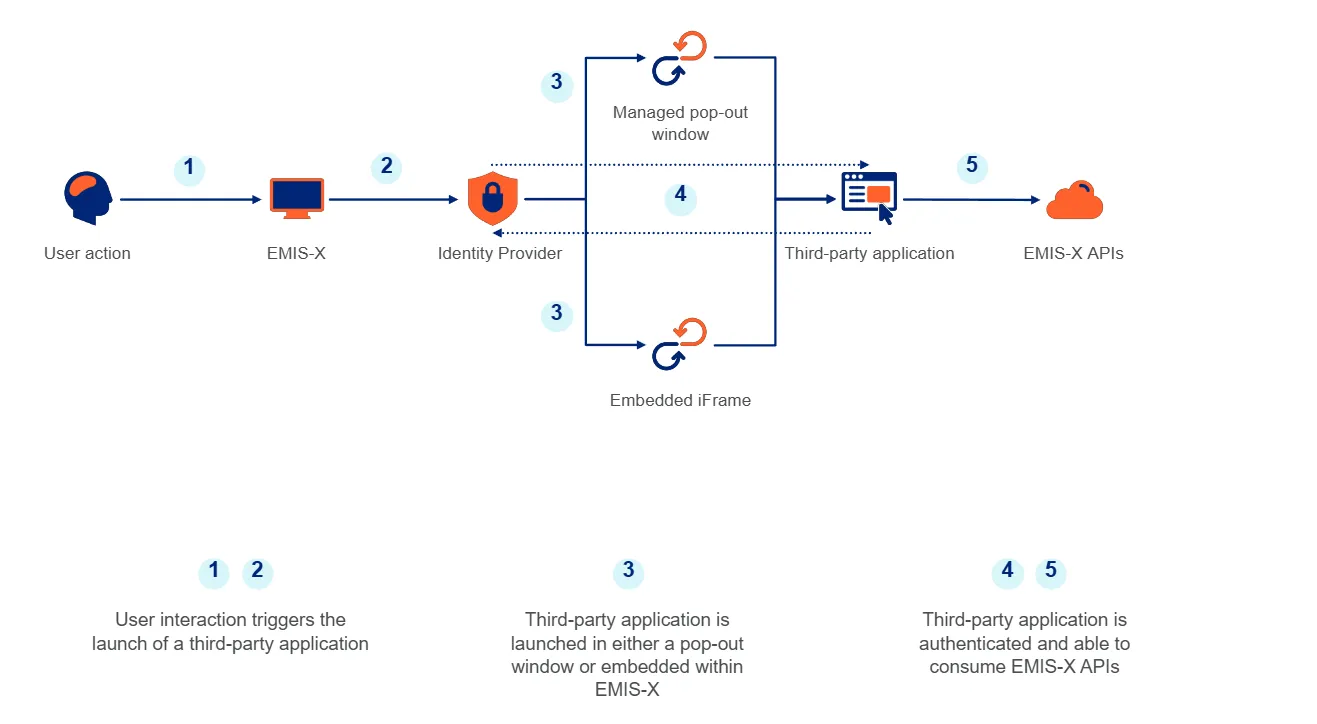
Section titled “Introduction”EMIS-X App Launch is an integration framework for third party organisations who want to integrate their applications with EMIS-X. This framework provides a managed and seamless experience for users of EMIS-X by extending and complementing core user workflows with extended partner integrations. EMIS-X App Launch is based on standards and provides a modern and secure way for partners to integrate with EMIS-X. The below diagram provides a high-level process flow for the EMIS-X App Launch.
Approach
Section titled “Approach”Partner applications will be launched using a one-time code and Optum’s issuer endpoint address, passed as query parameters. Each partner must use these parameters to perform a token exchange and obtain an access token. This token will include claims for the authenticated user, their organisation, and the application’s authorizations. If patient context is required, demographic details will be included in the authorization_details claim. For configuration guidance, refer to the ‘Set-up’ section below and see the authentication documentation
Set-up
Section titled “Set-up”To get started you will need to provide Optum with details that will enable your application to be registered with the EMIS-X AuthN/AuthZ services. Please refer to the table below for more information on what you will need to provide for this step.
| Item | Description | Example |
|---|---|---|
| Application name | The name of your product | Mock application |
| Display name | The name of your product that will be visible to the end user in the EMIS-X user interface | Mock application |
| Description | A short description of your product | Shared care record |
| Application scopes | Permissions required for your product | Application Read |
| End user scopes | Permissions required for the end user accessing your product | User write |
| Redirect URI | The authentication (login page) for the third-party once EMIS-X challenges for credentials | https://app.example.com/auth/callback |
| Launch URL | The third-party application URL that starts an app launch. Can be the same as the Redirect URI | https://app.example.com |
| Patient context required | Does the application need to launch with patient context? | Yes / No |
| Patient context data | What level of data is required to support patient context | Dataset A Dataset B Dataset C |
| EMIS-X instance | Companion or Browser | Companion |
| EMIS-X care setting | GP | Primary care (GP) |
Authentication
Section titled “Authentication”When integrating an external application with EMIS-X, the application will need to authenticate with the EMIS-X AuthN service to access the EMIS-X API on behalf of the user. This guide will walk you through the steps required to authenticate an external application with the AuthN service, also see authentication. External applications launched from EMIS-X will be provided with a one-time launch identifier (launch) that can be used to authenticate the application with the EMIS-X AuthN service. This identifier is unique to the application and user and will expire after a set period of 10 minutes. In addition to the launch identifier, EMIS-X also provides an issuer URL (iss) used to retrieve an access token. This URL is unique to the environment with which the application is integrating. Both are provided in the launch URL query string when the application is launched. For example:
https://external-demo.app/?iss=https%3A%2F%2Fidentity.dev.emishealthsolutions.com%2F5eb0f67d-cfc5-418b-aad3-0c194267c1f2&launch=a4846eec-b657-41dd-afd3-11d5c4842d71
Authenticating the application
Section titled “Authenticating the application”To authenticate the application, the application will need to exchange the launch identifier for an access token. This is done by making a POST request to the issuer URL with the launch identifier in the body of the request. The issuer URL will return a JSON response containing the access and ID tokens. The access token can then be used to authenticate the application with the EMIS-X API.
Microsoft Authentication Library (MSAL) integration
Section titled “Microsoft Authentication Library (MSAL) integration”The Microsoft Authentication Library (MSAL) can also be used to authenticate using the PublicClientApplication class. Examples of using the PublicClientApplication for authentication using different frameworks can be found on the Microsoft Authentication Library (MSAL) website.
Organisation, user and patient context
Section titled “Organisation, user and patient context”Identity Token
Section titled “Identity Token”The ID token also provides the application with claims for the current user and if required, the patient. The ID Token can be described by the following interfaces:
interface IdToken {  /**   * The issuer of the token   */  iss: string;
  /**   * The subject of the token   */  sub: string;
  /**   * The audience of the token   */  aud: string;
  /**   * The expiry time of the token   */  exp: number;
  /**   * The email address of the current user   */  email: string;
  /**   * Unique identifier for the current user   */  userERN: string;
  /**   * The title of the current user   */  title: string;
  /**   * The first name of the current user   */  firstName: string;
  /**   * The last name of the current user   */  familyName: string;
  /**   * The organisation ERN of the current user   */  orgERN: string;
  /**   * The organisation name of the current user   */  orgName: string;
  /**   * A unique number for the current user's organisation (Optum Reference Number)   */  cdb: string;
  /**   * The National Identifier of the current user's organisation   */  ods: string;
  /**   * The National Identifier of the current user   */  authorizations: string[];
  /**   * Additional context including the patient context for the current patient   */  authorizationDetails: IAuthorizationDetail[];}
interface IAuthorizationDetail extends IPatientDetails {  /**   * The type of context e.g. patient-context   */  type: 'patient-context';}
interface IPatientDetails {  /**   * The patient's title   * @example "Mr"   */  title: string;
  /**   * The patient's forenames   * @example "John"   */  forenames: string;
  /**   * The patient's surname   * @example "Smith"   */  surname: string;
  /**   * Identifiers for the patient   */  'patient-identifiers': IPatientIdentifier[];}
interface IPatientIdentifier {  /**   * The type of identifier e.g. NHS Number or GUID   */  type: string;
  /**   * The value of the identifier   */  value: string;}
Decoded ID Token
Section titled “Decoded ID Token”An example of a decoded ID Token can be seen below:
{ "iss": "https://identity.dev.emishealthsolutions.com/5eb0f67d-cfc5-418b-aad3-0c194267c1f2", "sub": "00000000-0000-0000-0000-000000000001", "aud": "https://identity.dev.emishealthsolutions.com/5eb0f67d-cfc5-418b-aad3-0c194267c1f2", "exp": 1629820800, "email": "applicationsolution@emishealth.com", "userERN": "ern:emis:user:user:b3f031d7-3978-44c9-b71d-18c4ed66d5cf", "title": "Dr", "firstName": "Team", "familyName": "Mendeleev", "orgERN": "ern:emis:org:org:d5753427-76ec-48e8-ab19-7f3308d5ca3d", "orgName": "Dr WJ DEGUN'S PRACTICE", "cdb": "50002", "ods": "F81029", "authorizations": ["doc-app.create"], "authorizationDetails": "[{\"type\":\"patient-context\",\"title\":\"Mr\",\"forenames\":\"John\",\"surname\":\"Clint\",\"patient-identifiers\":[{\"identifierType\":\"GUID\",\"identifierValue\":\"45847e27-e88e-43ec-a408-489b90804655\"},{\"identifierType\":\"NHS Number\",\"identifierValue\":\"9732270349\"}]}]"}